
JEvents
- What is JEvents? A quick intro to JEvents for complete beginners.
Importing Events in CSV Format
ExpiredIn JEvents it is possible to import events from a CSV file. The format of this file is very important - some users find MS Excel doesn't give enought flexibility to set the field delimiter to a comma and it often ends up leaving out the double quotes around the fields. If you have these problems then I'd revommend you try OpenOffice or LibreOffice instead to create the extract.
It must include the following columns:
"CATEGORIES","SUMMARY","LOCATION","DESCRIPTION","CONTACT","X-EXTRAINFO","DTSTART","DTEND","TIMEZONE","RRULE"
Club members can download a sample file.
For non-members - this is an example of the first line of events.
"Sport","Football Match","Football Stadium","This event is just for fun","Contact Name","Whatever extra-info","20100915T150000","20100915T191500","Europe/London","FREQ=DAILY;COUNT=10;INTERVAL=3"
You can use a CSV file whereever you would import an iCal file in JEvents.
Custom Fields
If you are using the Silver member custom fields addon then you can include the value of your custom fields in the CSV file too. For example if you have a URL type field with a name 'field1' then a sample import could look like this:
"CATEGORIES","SUMMARY","LOCATION","DESCRIPTION","CONTACT","X-EXTRAINFO","DTSTART","DTEND","TIMEZONE","RRULE","field1"
"Sport","Football Match","Football Stadium","This event is just for fun","Contact Name","Whatever extra-info","20100915T150000","20100915T191500","Europe/London","FREQ=DAILY;COUNT=10;INTERVAL=3","http://www.mysite.com"
Notice how we include the fieldname in the first row of the CSV file.
Importing Locations
For importing locations there is a config option in the managed locations component to set to allow the matching of imported event locations. If this is set to yes AND the location field in the CSV file is an exact match for and existing location title then it will be matched up with the location in the database (as long as the importing user is the creator of the location or the location is a shared/global location).
You can also auto-create locations IF the location field is in this EXACT format "Location Name - Street, City, Country" or "Location Name - Street, City, Country, Postcode"
Importing Standard Images and Files
If you use the silver member standard images and files plugin you can import these as follows:
Add extra column headings
"upload_image1","upload_image1_title"
So that the heading row and data looks something like
"CATEGORIES","SUMMARY","LOCATION","DESCRIPTION","CONTACT","X-EXTRAINFO","DTSTART","DTEND","TIMEZONE","RRULE","field1","upload_image1","upload_image1_title"
"Sport","Football Match","Football Stadium","This event is just for fun","Contact Name","Whatever extra-info","20100915T150000","20100915T191500","Europe/London","FREQ=DAILY;COUNT=10;INTERVAL=3","http://www.mysite.com","4ed5f32153fa64.61913523.jpeg","The Image"
Now JEvents will use the image images/jevents/4ed5f32153fa64.61913523.jpeg and the thumbnail images/jevents/thumbnails/thumb_4ed5f32153fa64.61913523.jpeg for this event
This article describes the custom format strings in the latest events module - and makes reference to incorporating elements from club addons e.g. custom fields, images
If your format string is being ignored MAKE SURE you have 'Use settings below' checked in your module parameters.
Fields
The custom formatting strings are based around substituting field codes with their values from an event - the available fields are:
- ${startDate}, ${endDate} = The start and end date/time of the event repeat
- ${eventDate} = The date being looked at - if you are showing events over the next 7 days and a multiday event has already started then this date may be midway through the event.
- ${title} = The event title (automatically converted to a link if you set the config option for this)
- ${category} = The event category
- ${calendar} = The name of the calendar the event is in
- ${contact} = The event contact details
- ${content} = The event description. If you want the content to be truncated/cut short at a certain length then use something like ${content(120|...)} - this will cut the content to only 120 characters and then put ... if the content is longer.
- ${addressInfo}, ${location} = The event location
- ${extraInfo} = Extra information
- ${createdByAlias}, ${createdByUserName}, ${createdByUserEmail}, ${createdByUserEmailLink} = details about the creator of the event
- ${eventDetailLink} = A link to the event detail. So you could do this <a href="/${eventDetailLink}">{thumbimg1}</a> to link a thumbnail image to the event detail page.
- ${color}= The hex code of the event colour.
- $(countdown) = The time until an event starts. e.g. ${countdown(Days to go %d)} or ${countdown(Time to go %d days %h hours and %m minutes)}
- ${categoryimage} - Used to show the image assigned to the category, from the category manager.
- ${duration(%d Days %h hours %m minutes)} - used to show the duration of an event. You can use %wd for the whole number of days
Special Formatting
All the date fields take formatting options e.g. ${endDate(%I:%M%p)} o r${startDate(D, M jS, Y, @g:ia)}. There are 2 formatting systems you can use based on the php "date" and "strftime" functions - see http://php.net/manual/en/function.date.php and http://php.net/manual/en/function.strftime.php . You should not mix and match there within a specific field
Conditional Fields
There is limited support for conditional output in the format string. The module supports 3 different conditional flags:
- a = Condition on all day events
- e = Condition on events with no specified end time
- m = Condition on events multi day events
You would use [a: xxxxxxxx] to output xxxxxxxx when the condition is true or [!a: yyyy] to output yyyy when the condition is not true.
For example if we had this format string:
${startDate(%A %B %e)}[!a:, ${startDate(%l:%M %p)} - ${endDate(%l:%M %p)}]
This would only output the start and end time for an event that is not an all day event
You can 'combine' these conditions e.g.
${startDate(%A %B %e)}[!a:, ${startDate(%l:%M %p)} - ${endDate(%l:%M %p)}][a: - All Day]
This would output something like this for an event with a start and end time
Sunday September 12, 10:00 AM - 6:00 PM
and
Sunday September 12 - All Day
for an event with no end time.
You cannot embed these conditions inside each other.
Club Addon Fields
Managed Locations Addon
The following fields are supported ${loc_title}, ${loc_id}, ${loc.street}, ${loc_desc}, ${loc_postcode}, ${loc_city}, ${loc_country}, ${loc_state}, ${loc_phone}, ${loc_image}, $loc_url}
Standard Image/File Uploads
You must enable the display of images in list views in the plugin parameters if you want to use thumbnail images in your latest events module.
The following fields are available: The images as full html image tags = ${imageurl1}, {thumbimg1} and the URLs of the images are ${imageimg1}, ${imagethumb1}
Custom Fields
You must enable the display of custom fields in list views in the plugin parameters and use the special new version of the module in the custom fields download area.
For a field with a name of field1 you use this code ${field1}
JEvents Tags
You must enable the display of tags in list views in the plugin parameters.
Use the code ${jevtagstext} or ${jevtagsraw} - the first of these includes a label as well as the list of tags.
Using Codes From the Layout Editor
Finally if the fields you are interested in are not listed above then you can use the 'codes' from the JEvents layout editor (for list views) in the custom format string. For example
- to show the attendee count from RSVP Pro you can use ${ATTENDCOUNT}
- to show the registration closing date you can use ${REGCLOSING}
- to show the managed people summar you can use ${JEV_PEOPLE_SUMMARY}
- etc.
If you are a club member most addons give you extra filters that your can use in addition you can use the filters that come with JEvents itself - i.e. category and search.
The default built in JEvents Filters are:
- Category - Allows category based filtering
- Search - Allows text string searching
- Justmine - Allow searching events that are created by the user searching
- Startdate - Allows searching by a date range, a set date, before date or 'On or after' date. The 'startDate' filter is a special filter that is designed to work in the admin panel under the event list when you are logged in as an event creator. It won't work elsewhere in JEvents and will always default to 2 weeks in the past when first setup
- Published - Allows searching by Published or Unpublished events.
- Reset - A reset button to clear the current search filters that have been used.
The easiest way to know what you can use on your site is to look in the folder plugins/jevents/filters/. In this folder you will see files like Locationsearch.php, Taglookup.php, Locationcategory.php, Customfield.php etc. The more addons you have the more filters are available. NB in Joomla 2.5 onwards you will need to look for all sub folders that match this pattern plugins/jevents/*/filters/
In most instances the names should explain what the filter does - to use them you take the name of the file drop the ".php" and change the name to lower case (don't touch the actual files - this is just how you find the correct string to use in the filter.) . So Locationsearch.php becomes locationsearch and allows you to do a search on locations (which includes location name and city) etc.
To add your filters to the module add them as a comma separates list in the module paramaters e.g. "search, category, locationsearch". As per the below screenshot:
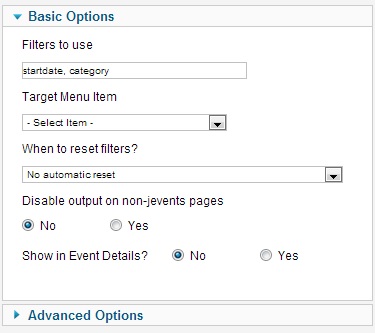
Target Menu Item - This is used to control what JEvents Menu Item will control the events and layout etc.
When to reset filters? - This is a new option in JEvents V3.x Package install, allows the module to automatically reset the filters depending on your selection.
Disable output on non-jevents pages - Allows you to not display the module when not on JEvents Pages.
Show in Event Details? - If viewing an event, it's likely you will not want to filter for events as you have researched your search. But this gives you the option to allow the user search on event details or not.
The filter module can be placed in one of the special module positions available in JEvents. This allows you to create specially filtered views of events.
If you want to override specific language strings from the en-GB.com_jevents.ini file you can create a special override for these changes what won't get overwritten when you upgrade.
Joomla 2.5
Joomla 2.5 provides an easy mechanism for overriding language strings in any component or module.
In the back-end of Joomla select the Language Manager from the Extensions Menu and then select "Overrides".
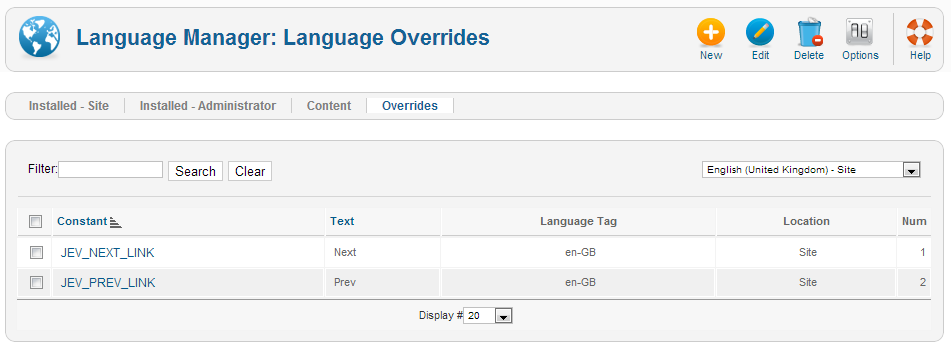
Here you are can create new language overrides - there is a clever search tool to find the strings you want to change.
To create a language override, click 'New'. A new page will load and on the right hand side you can search for the text you wish to change. See: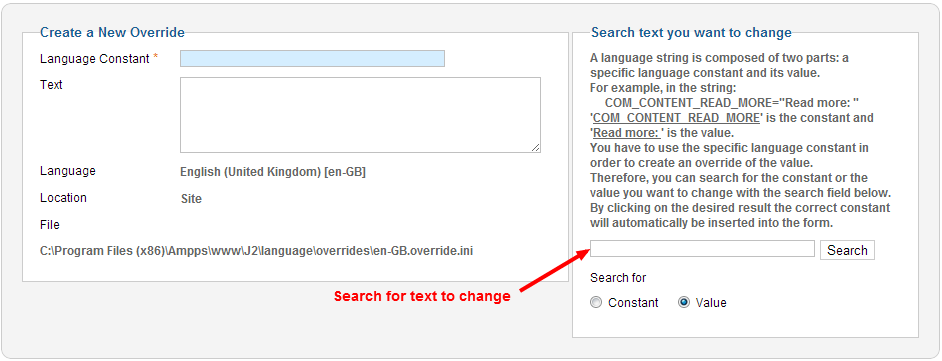
Click the search box, and type the text. Once it has finished searching you will see results like: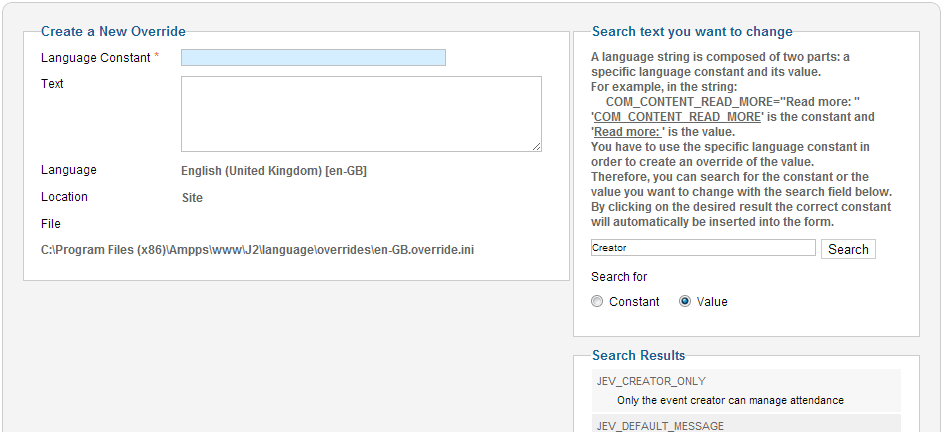
As you can see results have been found. To change the text click the search result you want to change, and it will automatically populate the boxes on the left at which point you can change the text value. Click save and this will now be in place.
NOTE! (Cannot find language strings and Plugin Language strings):
This does not search the Plugin or Administrator Language files, so if you cannot find the string you are looking for then you need to select the administrator language sites before creating a new Override. Joomla! places it's Plugin Language files in the Administration folder so it becomes a little trickier.
Go to the Language Overrides and click the English United Kingdom - Site drop down, and select: English United Kingdom - Administrator. (Note, select which ever language you use). See the below picture: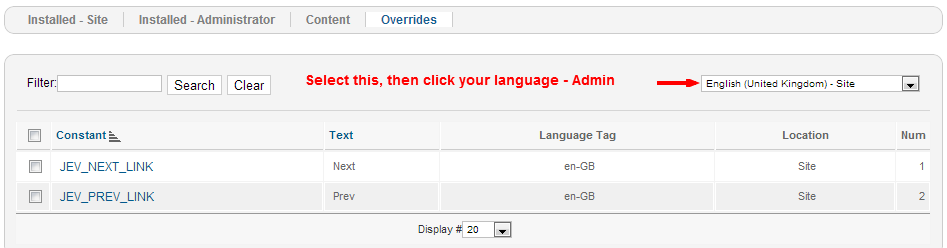
Once you have selected this, click New. Preform the override as normal, but before saving you need to tick the box which says "For both locations". see: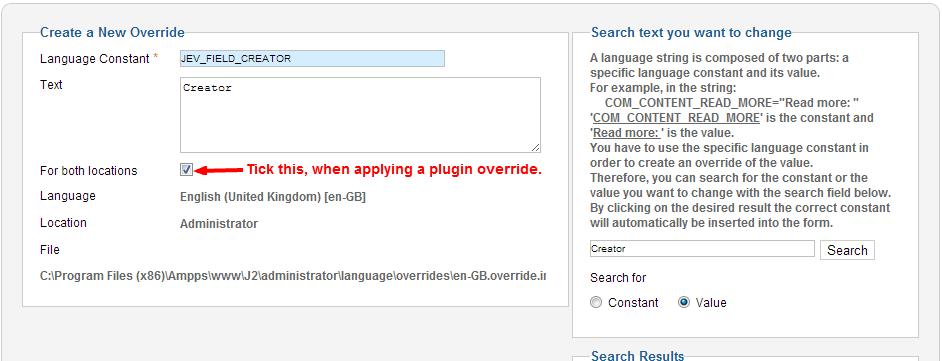
And click save.
Note: this searches all Joomla! Language files not just JEvents, you can tell which below to JEvents as they normally begin with JEV or COM_JEV etc.
Alternatively you can edit/create the file language/overrides/en-GB.override.ini (change the language code as necessary) and add only the specific changes you want to make to this file. Note that if you are customising the backend strings in JEvents OR plugin strings then you need to add the custom language strings to the file administrator/language/overrides/en-GB.override.ini
From JEvents 3.x - Layout Defaults custom language strings. (Useful for multilangual sites.)
When creating a multilangual site for example, you will find that you do not want to type text directly into the a Layout Default as it will always be in that language. As of JEvents 3.x you can now use the tag {{translated category:_JEV_EVENTS_IN_CATEGORY}} in the Layout Defaults, replacing: _JEV_EVENTS_IN_CATEGORY with you actual language constant. This will then pull the language file being used at that time.
Joomla 1.5
Create the file templates/{YOUR TEMPLATE}/language/en-GB/en-GB.com_jevents.ini (change the language code as necessary) and add only the specific changes you want to make to this file.
Example custom language strings
For example say you want to change the word "By" that appears in the event detail page before the event creator's name to "Created by" then simply add
JEV_BY=Created by
to the relevant file.
Other Components, Modules and Plugins (In Joomla 1.5 only)
Rather than implement this override mechanism into all plugins, components and modules I wrote a special system plugin that enabled this in all Joomla addons (and core component/modules/plugins). See this download for more details.